
Install WordPress Pete on Oracle Cloud (Production)
1 — Provision the Server
You’ll start by creating a new Compute Instance in Oracle Cloud (OCI). This VM will host your WordPress Pete installation.
- Log in to the Oracle Cloud Console.
- In the left menu, go to Compute → Instances.
- Click Create Instance.
- Give your instance a name (e.g.,
wordpress-pete). - Under Placement, choose a region and availability domain near your users.
- Under Image and Shape:
- Image: Select Ubuntu 24.04 (Canonical image).
- Shape: Pick VM.Standard.E4.Flex (4 OCPUs, 8 GB RAM recommended).
- Networking:
- Create a new Virtual Cloud Network (VCN) and subnet, or select an existing one.
- Ensure Assign a Public IPv4 Address is checked.
- SSH Keys:
- Paste your public SSH key (from your local
~/.ssh/id_rsa.pub) or generate a new key pair in the console.
- Paste your public SSH key (from your local
- Leave boot volume at default (50–100 GB recommended).
- Click Create and wait for provisioning.
Once ready, copy the Public IP Address of your instance.
2 — Connect over SSH
From your local terminal, replace <PUBLIC_SERVER_IP> with the server’s address and connect as root:
3 — Run the Pete installer
ssh root@<PUBLIC_SERVER_IP>Paste the one-liner below into the SSH session; it downloads, makes executable, and launches the installer:
curl -o pete_installer.sh -L https://deploypete.com/pete_installer.sh && chmod 755 pete_installer.sh && sudo ./pete_installer.sh4. Launch Pete in your browser
When the script completes, simply visit:
http://<YOUR_SERVER_IP>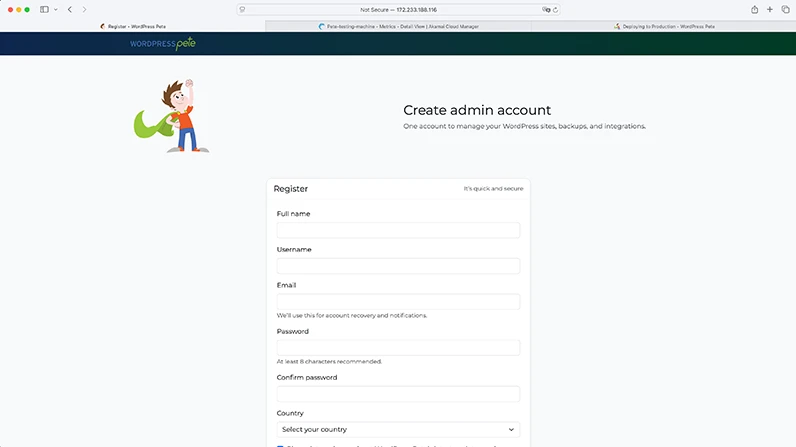
5. (Optional — Recommended) Harden SSH & Firewall
Still connected as root, tighten basic security in one sweep
# ── Change SSH to a non-standard port (2222) ──
sed -i 's/^#\?Port .*/Port 2222/' /etc/ssh/sshd_config
systemctl restart ssh
# ── Refresh UFW rules ──
# drop old SSH port
ufw delete limit 22/tcp
# rate-limited new SSH port
ufw limit 2222/tcp
# Allow HTTP
ufw allow 80/tcp
# Allow HTTPS
ufw allow 443/tcp
ufw --force enable
Next time you connect:
ssh -p 2222 root@<YOUR_SERVER_IP>System Passwords & Environment Variables
All secrets generated during installation—database credentials, API keys, reload tokens, etc.—live in /opt/wordpress-pete/.env
# View the file (read-only)<br />
sudo cat /opt/wordpress-pete/.env
Switching WordPress Pete to a Different PHP Version — Zero Downtime
1. Edit the version flag
Keep it safe
This file is the single source of truth for every password and token in your stack—treat it like a vault key.
Restrict access:
chmod 600 /opt/wordpress-pete/.env(owner-read/write only).Never commit it to version control or share it in support tickets.
sudo vim /opt/wordpress-pete/.envFind PHP_VERSION= and set it to 8.1, 8.2, or 8.3. Save & exit.
2. Re-build the PHP image
docker compose build --no-cache php3. Hot-swap the container
Launch the freshly built PHP container (no other services are touched)
docker compose up -d php4. Verify
Sign back in to WordPress Pete and visit /admin/phpinfo to confirm the new PHP version is active.
Docker Compose Cheat-Sheet
| Task | Command (inside your project folder) | When / Why you use it |
|---|---|---|
| WordPress Pete Docker project route | cd /opt/wordpress-pete | Browse to the project dir |
| Start or re-build the stack |
docker compose pull docker compose build docker compose up -d | Builds images if they changed and launches every service in the foreground. Hit Ctrl +C to stop. |
| Open a shell in a container |
| Inspect logs, run WP-CLI / Artisan, edit files quickly. |
| Re-build after editing a Dockerfile | docker compose build --no-cache apachedocker compose build --no-cache phpdocker compose build --no-cache mysql | Forces a clean image rebuild for wordpress, apache, or php after you tweak their Dockerfile. |
| Delete all volumes (nuke-and-pave) | bash docker compose down -v | Stops containers and removes every named/anonymous volume—irreversible. |
| Restart Apache inside its container | bash docker compose exec apache bash -c "apache2ctl restart" | Applies v-host changes without recreating the whole stack. |
| Where Apache keeps v-hosts | /etc/apache2/sites-available – staging configs /etc/apache2/sites-enabled – live symlinks | Edit a file in sites-available, then run apache2ctl graceful (from inside the container). |
| Where Apache keeps the website files | /var/www/html | Pete files path: /var/www/html/Pete |
| Enter MySQL as root | docker compose exec mysql -u root -p (password = MYSQL_ROOT_PASSWORD in .env) | Handy for one-off queries or importing .sql dumps. |